Chapter One: Introduction
Ichika was uploaded by Poi6 on allthefallen.moe.
They write,
- Registrations are now closed.
- I am shutting down the site within the next few months. -Vistarrr
- Reminder / shoutout for LOlicon Artist Directory (aka LOAD), created by flatsims, check it out! From now on, you can also find it on our front page as well as under “Our friends” (in the navigation at the top).
- Onirism
Carol Customizer 2.5.11
- Authorperferd
- Creation date
- Featured
Overview Updates (53) Reviews (59) History Discussion
The Carol Customizer is an advanced player model customization tool for Onirism. New players may want to start with only installing the Onirism Lewd Plugin, which on it’s own enables the majority of the modded lewd content.
Features
- CarolCustomizer
- Allows unlimited individual models to be used on Carol instead of only outfit-specific ones.
- Allows access to hidden, unreleased, and arcade-only outfits.
- Allows model materials to be replaced, to recolor Carol and her clothes.
- Allows custom outfits during all cutscenes, including ones that normally force the default outfit.
- Allows customization of certain NPCs and enemies.
- Allows character model to be changed at any time during gameplay, not just at toy chests.
- Allows players to save and share their designs using Recipes.
- Adds a toggle to keep the game running when the window isn’t focused.
- OutfitLoader
- Loads .outfit files into the Customizer
- Automatically loads outfits from Mods folder
- Supports hot reloading individual outfit files
- Improved outfit support:
- Supports outfits with complex cloth & jiggle physics.
- Supports older outfits with outdated materials.
- Displays outfit author details.
- Replaces outfit support from the Onirism Lewd Plugin (OLP)
- Outfit pickups, unlocking and selection become unavailable in OLP.
- Loads .outfit files into the Customizer
- CCOLPHelper
- Allows for models to change automatically when activating love mode.
- Handles compatibility between the customizer and lewd plugins, to avoid softlocks, crashes, and unwanted behavior.
Compatibility
- tl;dr- this plugin works best with the game and all other mods up to date.
- Game Version Support
- Onirism is under active development as of 2026, and updates often change code the mod relies upon.
- Customizer is only tested and compiled against the latest steam version of the game.
- Customizer support tends to lag behind game updates by a few days, depending on how much the game has changed.
- Older game versions may be partially compatible, but it’s not practical to provide support for them. Use pirated or outdated copies at your own risk, with no warranty or support. Not that you have any warranty anyway.
- Other Mod Support
- This mod has no known incompatibilities with other mods (as of Jan ’26).
- Though not all OLP features are supported when using the Customizer.
- This mod has no dependencies on external mods, everything required is included.
- Compatibility with the Onirism Lewd Plugin typically requires the most up-to-date version of the OLP.
- Older versions may work, but are not explicitly supported.
- This mod has no known incompatibilities with other mods (as of Jan ’26).
Installation
- Download
- Click the download button at the top of this page, or this link since you’re here.
- Extract
- The mod is packaged as a zip/rar archive, and needs to be extracted by some archive extraction software, winzip, winrar, 7zip, windows file explorer.
- After a successful extraction, a new folder/directory will be created with all of the mod files. Depending on the archive software used, this folder’s name can vary.
- The top level folder of the mod is titled “Onirism”, and it will contain a “BepInEx” folder, as well as several other files and directories required for the mod to work.
- Install
- Locate your game installation folder. Steam will install it into the windows program file folder.
C:\Program Files (x86)\Steam\steamapps\common\Onirism
- Copy the files from the “Onirism” mod folder into your game installation’s Onirism folder, oroverwrite the game Onirism folder with the mod Onirism folder.
- If prompted to overwrite existing files/folders/directories, select yes.
- The Customizer does not replace or modify any game files, or any files for other specific mods.
- BepInEx is a common mod framework, and one copy of the BepInEx folder is required for mods to work. This file is included with the Customizer and OLP downloads.
- A successful copy/paste of this folder completes the installation process for Windows users.
- Linux/Proton users should follow this document to ensure mods launch correctly.
- Locate your game installation folder. Steam will install it into the windows program file folder.
- Launch
- Start the game.
- The Customizer can be opened in the main menu or during gameplay using Mouse 4 (Unity calls it Mouse3 because their numbering system is for programmers) or Keypad 0.
- If your keyboard/mouse do not have any of those keys, the keys can be manually modified:
- Close the game (it must be launched first to generate a config file).
- Edit the following lines in the
Onirism/BepInEx/config/CarolCustomizer.cfgfile to use a keyboard or mouse button you can access. Replace the portion after the = with the name of the key you’d like to use.- Menu Toggle (Mouse) = Mouse3
- Menu Toggle (Keyboard) = Keypad0
- Save and close the config file.
- Start the game.
- The keys can also be modified in the Customizer Settings UI in-game.
Installing Updates
- Installing updates is done the same way as the first installation.
Troubleshooting and Known Issues
- Click the above link for troubleshooting instructions, they’re in a forum post so they’re easy to link to directly.
Uninstall
- Customizer only:
- All Customizer specific files are located in BepInEx/plugins/CarolCustomizer.
- Deleting the CarolCustomizer folder will remove the Customizer without affecting any other mods.
- All mods:
- Removing the BepInEx folder will stop all mods from running.
- The doorstop_config.ini, and winhttp.dll files should be cleaned up as well, but have no effect on their own.
- Individual mods may leave content behind in other folders, such as Mods or Recipes.
- Remove these folders if you want to remove all mod content.
Usage
- I’m still working on this part of the tutorial, and I expect to update a lot of the mod UI in the next few months (as of Jan ’26), so for now, the old tutorial is close enough for the general gist, but a lot has changed.
- Most changes and new features have been documented somewhere in the patch notes, so take a look through there as well in the meantime.
- In general, click a menu item to see the stuff it’s made out of, and right click a menu item for more options.
Spoiler: Old and Mostly Wrong Tutorial
Getting started:
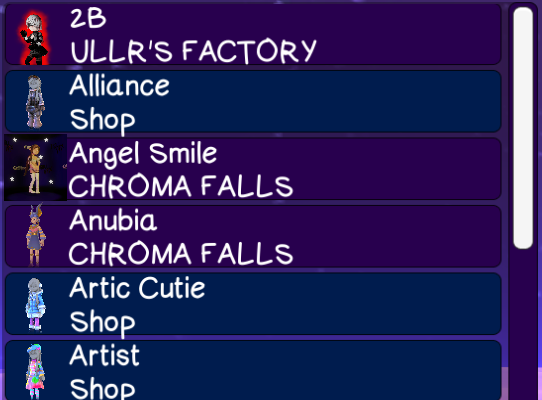
When you open the OLP using Mouse 4, the accessory menu will also open. This gives you a list of available outfits, their name, a thumbnail, and where in game to find them. Blue ones are SFW outfits built into the game, purple are lewd outfits.
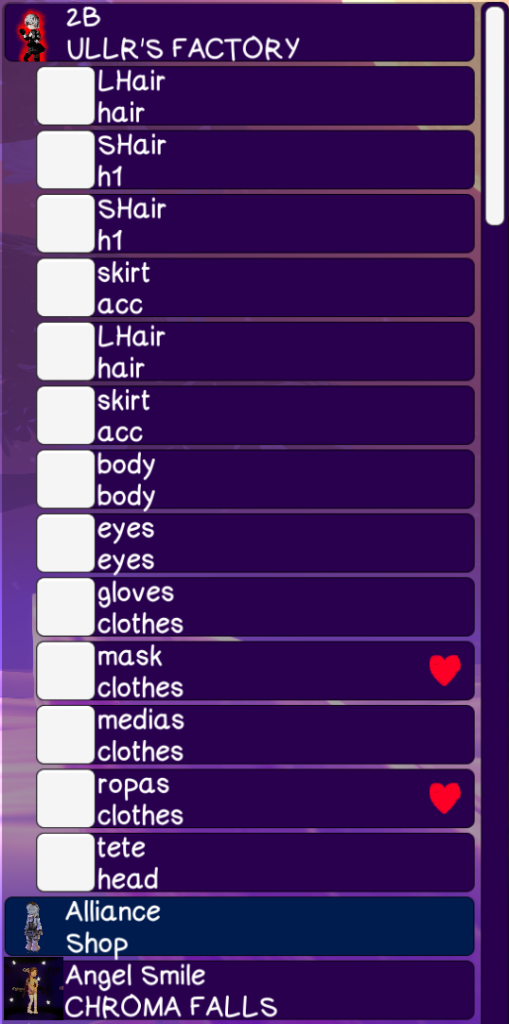
Right click an outfit to activate the whole outfit at once. Left clicking an outfit will show you all of it’s available parts, including clothes and body parts. Clicking the checkbox will turn that accessory on.
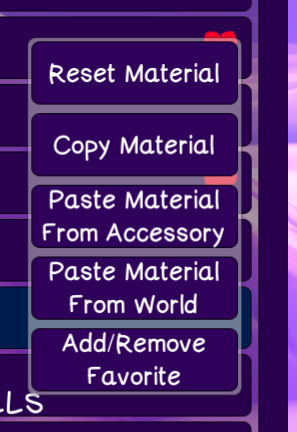
Right clicking an accessory gives you extra options:
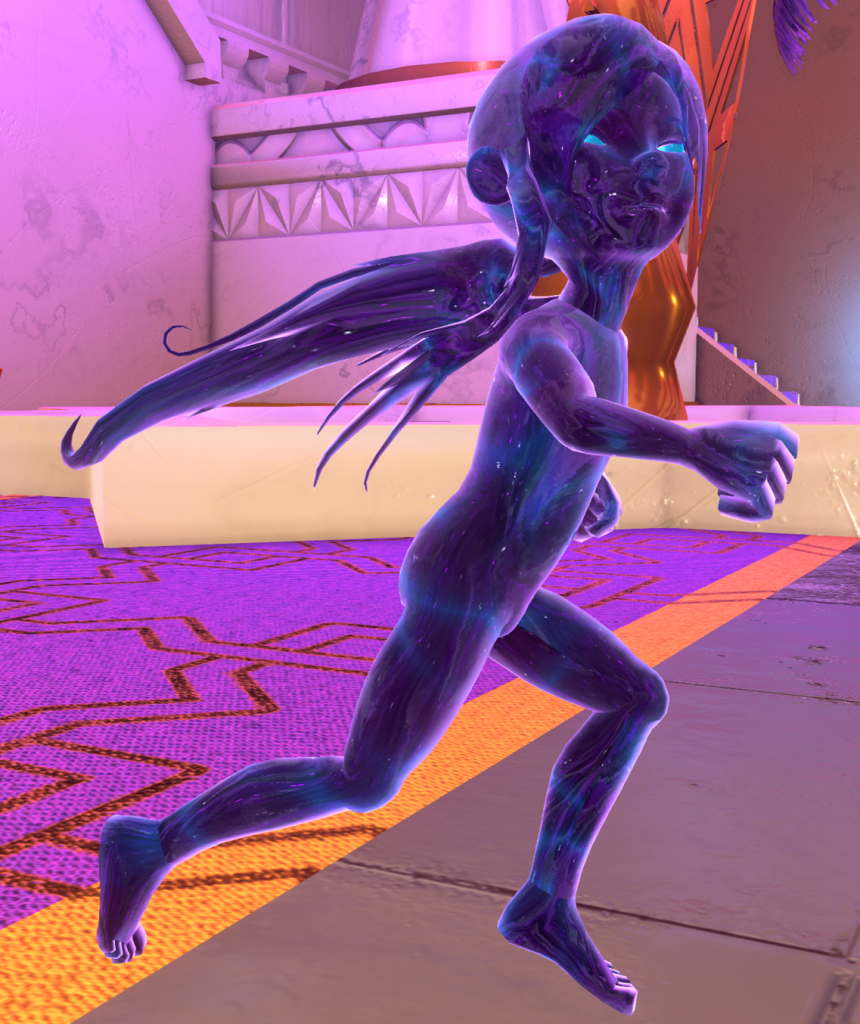
You can copy the material to put it on another accessory- this works best for faces and bodies, but also creates an interesting effect on many accessories. If you don’t like the material you’ve put on something, hit reset to bring it back to normal. “Paste Material From World” will take the material from the last thing you shot, letting you do things like this:
At the bottom there are a few buttons.
Uncheck All will uncheck everything, leaving only the base. Show/Hide Base will turn off the outfit active in OLP, leaving only the accessories you’ve selected in the Accessory Mod. If you uncheck all accessories and hide the OLP outfit, Carol will be totally invisible (to you, not enemies lol).
There are two ways to save and load your custom outfit recipe. By default, it will save to your disk. By holding shift, it will copy a code to/from your clipboard:
You can share this code by pasting it, and load other players’ codes by copying them- here’s one you can try now:CAROL_Ladybun/Helmet_hair|CAROL_Ladybun/Ladybun_Scarf|CAROL_Ladybun/Ladybunhelmet|CAROL_Ladybun/tete|CAROL_Ladybun/P1|CAROLMOD_SluttyBikini/acc.on3__body_graffiti|
I prefer to put larger codes in spoiler tags like this:
Spoiler: Outfit Code
CAROLMOD_FitzGirl/acc.off.off1.off2.off3.off4.off5.off6.off8.off9.off10_Shoes.003|CAROLMOD_FitzGirl/acc.off.off1.off2.off3.off5.off6.off7_bodyB%CAROLMOD_Suntan/acc.on6__body_g|CAROLMOD_FitzGirl/acc.off.off1.off2.off3_Pant|CAROLMOD_FarmerP2/hair|CAROLMOD_Gawr Gura/tete%CAROLMOD_Suntan/tete|CAROLMOD_Gawr Gura/eyes|CAROLMOD_Pajama1/acc.off.off2.lewd_Panties|CAROLMOD__LilAndy_Slut_v1.0/Cap|
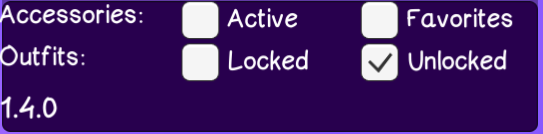
There are a few checkboxes:
Checking an accessory box will pop out accessories that match that filter. Unchecking an outfit box will stop showing certain outfits, depending on whether or not you’ve unlocked them yet. Unchecking both locked and unlocked boxes and checking an accessory box will give you a short list of just your active or favorite accessories.
In the /Onirism/BepInEx/config folder, there will be a file called AccessoryMod.cfg. This file contains the save data for the mod, such as your favorite accessories and saved outfit. You can open this file with any text editor. There is also a settings section at the bottom, as of version 1.4.0 there is only one setting:
Code:
[Settings]

## Allow accessories collected in one save to be used in all saves
# Setting type: Boolean
# Default value: false
UseAllSaves = false
Replace “false” with “true” if you want outfits unlocked in one save file to be accessible to all save files, like if you want to start a new game and keep your outfits.
General Info & Terminology
- Outfits
- Outfits are the game’s original way of setting Carol’s appearance.
- Outfits contain several models and materials.
- Some outfits have unique heights, cloth colliders, animations and effects.
- Recipes
- The customizer enables the use of Recipes.
- Recipes are like save files for Carol’s appearance.
- Recipes don’t contain any of the actual game assets, like models, materials, effects, or animations.
- Recipe data is stored as a type of text data called json. This text can be included in both .png images and .json text files.
- Models (Accessories)
- Models determine the shape of an object.
- Models are colored or drawn using materials.
- Faces, bodies, hands, hair, clothes and accessories are all models.
- Most models are driven exclusively by the animator.
- Some models have physics properties, such as hair and clothes.
- Materials
- Materials determine what color a model will be, how it interacts with light, and what surface texture it has.
- Materials may have special textures, shaders, or properties.
- While materials, textures, and shaders are different components, the Customizer does not offer any tools to edit them independently.
- Measurements
- Some outfits are designed to be slightly taller to accommodate large boots or footwear.
- OLP outfits can specify unique eye positions to accommodate different heads.
- OLP outfits tend to have faces that are better centered than outfits from the game, which can cause them to appear in the wrong position if mixing and matching eyes and faces between OLP and game outfits.
- If Carol’s eyes aren’t lining up with her face, go to the outfit of the face you’re using, and using the context menu, select “Use Measurements”.
- Animators
- Carol’s Animator determines how her movements will appear.
- Some outfits have animators with changes to how a specific animation appears.
- Right now, very few outfits include custom animations :/
- Cloth Physics
- Onirism uses the Magica Cloth 2 cloth physics library.
- Hair and clothing uses this library to move dynamically.
- Colliders
- Specify spaces that appear solid to cloth physics.
- Colliders are separate from models. Models do not collide with cloth physics.
- Different outfits have differently shaped colliders, designed to match the models included with them.
- Cloth collision works best when using colliders from the same outfit as the physics-enabled model.
- These colliders don’t affect Carol’s collision with the map, enemies, or other gameplay objects.
- Effects
- Any other special components that are included in an outfit.
- Includes lights, particles, sounds, objects with independent animations, or unique Unity scripts.
Chapter Two: Compatibility
Untested.